SEO Tools - DocsTeam members and access
Manage team members and service access
Invite teammates and control access to each subscribed service.
Open Team in the GeoRanker Platform to see who can use each service. Each active subscription has its own team. A colleague who needs both SEO Tools and HV SERP API needs access to each.

Who can manage access
These examples use sample names and email addresses.
- Owners manage billing, company details and organization roles. They can also invite colleagues, assign seats and issue API keys.
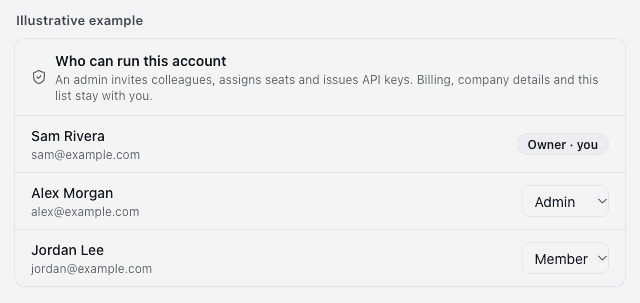
- Admins can invite colleagues, assign seats and issue API keys. To grant this role, the owner opens Who can run this account and selects Admin next to the person. The role saves immediately.
- Members can use their assigned services and see them under Services you can use on the Team page.
Add a colleague to a service
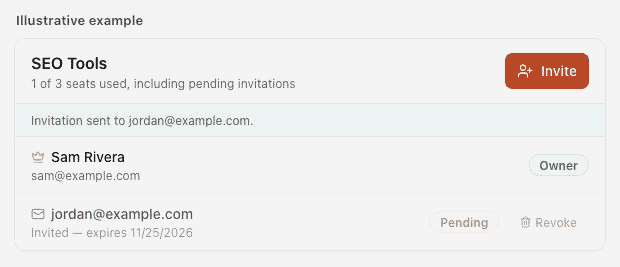
- On Team, find the service and check its seat count. Pending invitations count toward the plan limit. If the plan includes no team seats, the owner can choose a plan that includes them.
- For someone new to your organization, select Invite, enter their email address and select Send invitation. The link is valid for seven days and grants access to the named service.
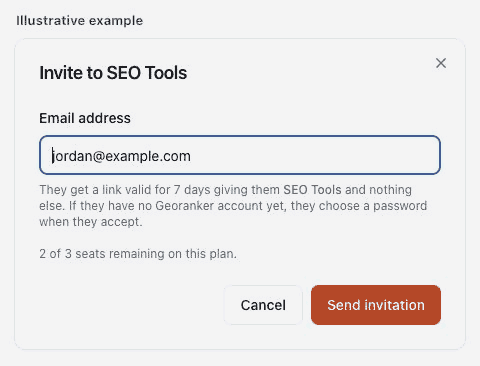
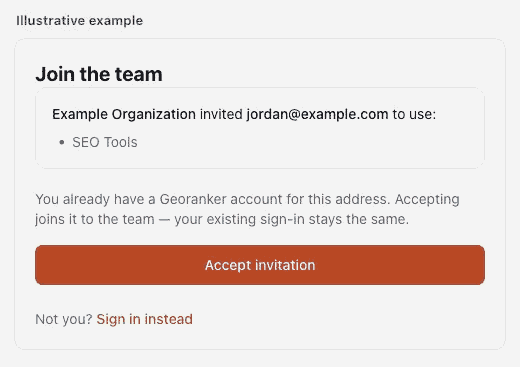
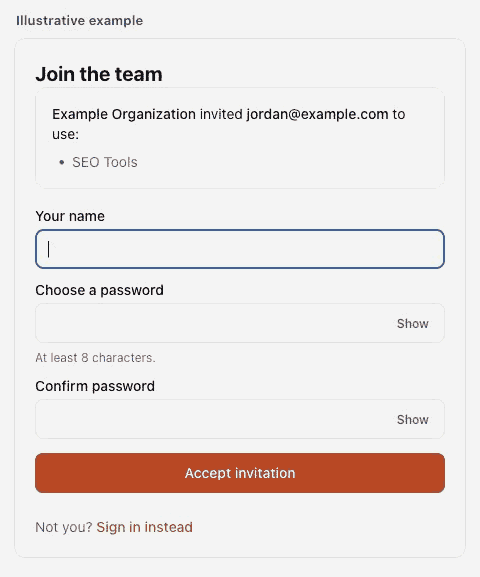
- The recipient opens the email and selects Accept invitation. Someone with an existing GeoRanker account at that address keeps their sign-in. A new user chooses a password when accepting.
- For someone already in your organization, select their name under Add to this team. Repeat for any other service they need.
HV SERP API has no team seat limit. Each colleague needs their own API key and credits before they can make requests.
Remove access
- To withdraw a pending invitation, select Revoke beside the recipient's email.
- To remove one person's access to one service, select Remove beside their name on that service's team. They keep access to any other service teams they belong to.
- After the last service is removed, the person appears under In your organization, in no team. To end their membership, select Remove from organization and confirm.
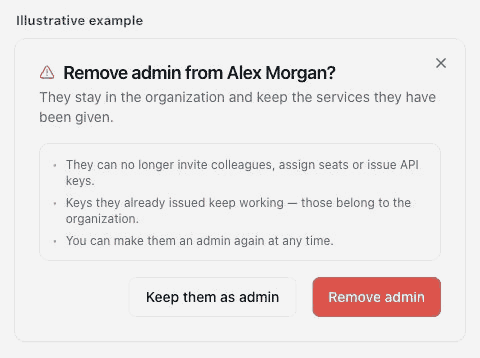
- To remove admin permissions while keeping service access, the owner selects Member under Who can run this account and confirms Remove admin. API keys the person already issued continue working.