API key and first request
Create an SEO Tools API key and list your projects.
Create a key in the GeoRanker platform, then list your SEO Tools projects. The project ID from that first request is what you will use in most report workflows.
Create your API key
- Sign in to the GeoRanker platform and open the SEO Tools service. Select the organization you want the integration to use if you have access to more than one. Open the SEO Tools service
- Select API keys.

- Select New key to open the creation form.

- Under Issue to, select yourself or a teammate who has SEO Tools access. Calls made with the key carry that person's access and are attributed to them.
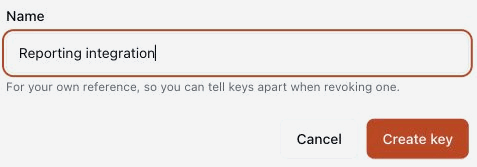
- Enter a Name you will recognize, such as
Reporting integration. Select Create key. If the platform shows a replacement warning, plan to update existing integrations first. The old key stops working when the replacement reaches SEO Tools.
- In Copy your key now, select Copy, store the key in your application's secret store, and select Done. The platform shows the full new key once.
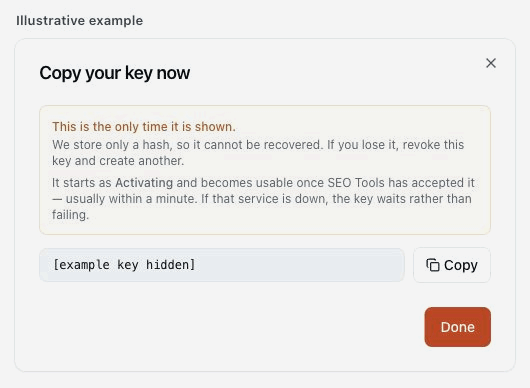
- Wait for the key to change from Activating to Active before using it. To retire a key, select Revoke on the same tab.
Keys begin with gk_ or grk_. Send the full key as Authorization: Bearer YOUR_API_KEY. The API has no login or token refresh step. Keep the key out of client-side code, Git, URLs, and support screenshots.
Make your first request
Set SEO_TOOLS_API_KEY from your secret store. For a local Bash session, read it silently and export it for the examples on this site.
read -r -s -p "SEO Tools API key: " SEO_TOOLS_API_KEY
printf '\n'
export SEO_TOOLS_API_KEY
List active projects. This request reads campaign information without creating a report.
curl --fail-with-body --silent --show-error --get \
  -H "Authorization: Bearer ${SEO_TOOLS_API_KEY}" \
  --data-urlencode 'status=active' \
  'https://seoapi.georanker.com/api/projects'
An illustrative response contains a projects array. Copy the id for the campaign you want to use.
{
  "projects": [
    {
      "id": "3f2504e0-4f89-41d3-9a0c-0305e82c3301",
      "name": "US search visibility",
      "domain": "example.com",
      "status": "active",
      "createdAt": "2026-01-15T10:00:00Z"
    }
  ]
}
If the array is empty, check that you selected the right organization. You can also create a project through the API. When you finish testing in the shell, run unset SEO_TOOLS_API_KEY.
Troubleshoot a request
| What you see | What to check |
|---|---|
401 UNAUTHENTICATED | Check the full key, the Bearer prefix in the header, and whether the key was revoked. |
403 Forbidden on a write | Check your role and report ownership. Viewers cannot create reports. Members can modify or delete reports they created. |
402 SUBSCRIPTION_PAST_DUE | The organization's subscription is past due. Reads continue to work. Resolve the subscription before creating or changing a report. |
404 Not Found | Verify the project or report UUID, that it belongs to the key's organization, and that you used the endpoint for the correct report type. |
| A validation error | Read error.code and error.message when present. Check the expected field names, allowed values, and JSON wrapper before retrying. |
| A connection error | Check the service with the public GET /api/health endpoint, which needs no key. |
Pick a report to run with the project ID you just retrieved. SEO Tools API report guide