Schedule rank tracking
Set, change, or disable a recurring rank tracking schedule.
Schedule a rank tracking report to collect fresh results without starting every check yourself.
Choose a schedule
- Open the rank tracking report you want to monitor.
- Select Update Monitor.
- Choose Daily, Weekly, Bi-weekly, or Custom. Use Custom when you need a different interval.
- Review the next run information and click Save Changes.
Choose a frequency that matches how often you review the results. Review your plan usage before adding recurring checks.
For a new report, you can select Activate Monitoring during Review & Create. See create a rank tracking report for the setup steps.
These screenshots use sample data from the interactive example.
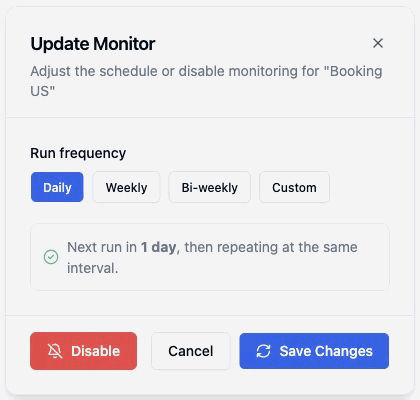
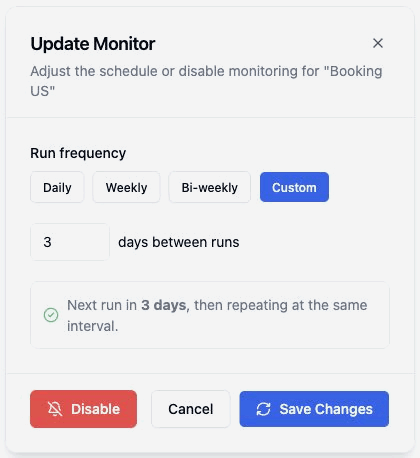
Sample data. Try the controls; changes stay in this example.
Change or stop recurring checks
Open Update Monitor again to change the frequency. Use Disable when you want to stop monitoring, or Cancel to leave the current settings unchanged.
Review changes over time
Return to Overview and use Ranking History to inspect a keyword across available runs. Keep the same search engine, location, and device when comparing results.